Open an .xmind file online, free, without installing XMind
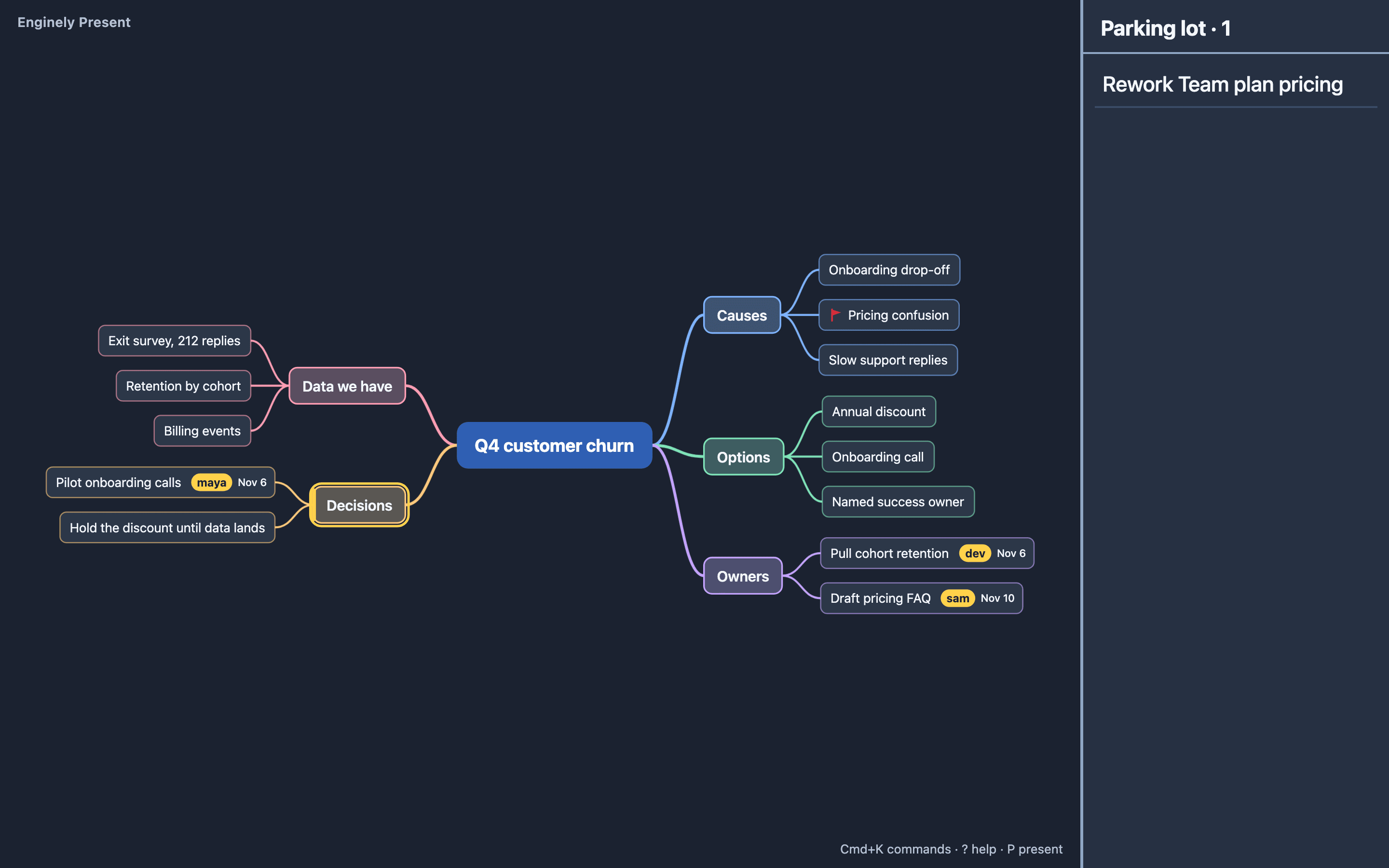
To open an .xmind file without XMind, drag it onto the editor in Enginely Stage, the mind map for meetings over Zoom. The file is read in your browser and nothing is uploaded. The map opens as a new document you can read, present or export.
How do I open an .xmind file online?
Drag the file onto the Stage editor. No sign-up is needed.
- Open stage.enginely.net.
- Drag the
.xmindfile anywhere onto the editor, or press Cmd/Ctrl K, type import and pick the file. - The map opens as a new document. The map you had open stays under Open recent document.
- Read it with the arrow keys. / collapses a branch, N opens a note, O shows the outline and M the map.
The file is read in your browser with a small zip library. The import is read-only, so your original file never changes.
What is kept from the .xmind file?
| In the .xmind file | In Stage |
|---|---|
| Topic titles | Node text |
| Notes (plain text) | The node's note |
| Labels | Tags |
| Task-done marker | Done |
| Priority 1 to 3, flags, question mark, stars | Stage's markers |
| Any other marker | A tag named marker:<id> |
| Folded branches | Collapsed branches |
| Extra sheets | A top-level branch named after each sheet |
| Floating topics | A branch named "Floating topics" |
The first sheet's central topic becomes the root. If something looks missing, check "Floating topics" first.
What is dropped?
XMind's styles (colors, shapes, fonts), images, hyperlinks, relationships, boundaries and summaries are ignored. Stage draws every map with its own level styles, so an imported map looks consistent rather than identical. Only the 2020 and later format is read.
How do I export or present the map?
Press Cmd/Ctrl K and type export for Markdown, OPML, PNG, PDF (choose Save as PDF in the print dialog) or JSON. Stage does not write .xmind files. See Markdown to mind map for the text formats, and press P to run the map in a meeting (Zoom and Teams guide).
Frequently asked questions
Do I need XMind installed?
No. Stage reads the .xmind file itself, in your browser, and shows the map.
Is my file uploaded anywhere?
No. The file is read and saved in your browser, and nothing is sent to a server unless you start a follow session.
Why does it say the format is not supported?
Very old XMind files that contain only content.xml are not read yet. Files in the 2020 and later format open normally.
Can I save the map back to .xmind?
No. Stage imports .xmind but exports Markdown, OPML, PNG, PDF and its own JSON.