How to present a mind map on Zoom or Teams
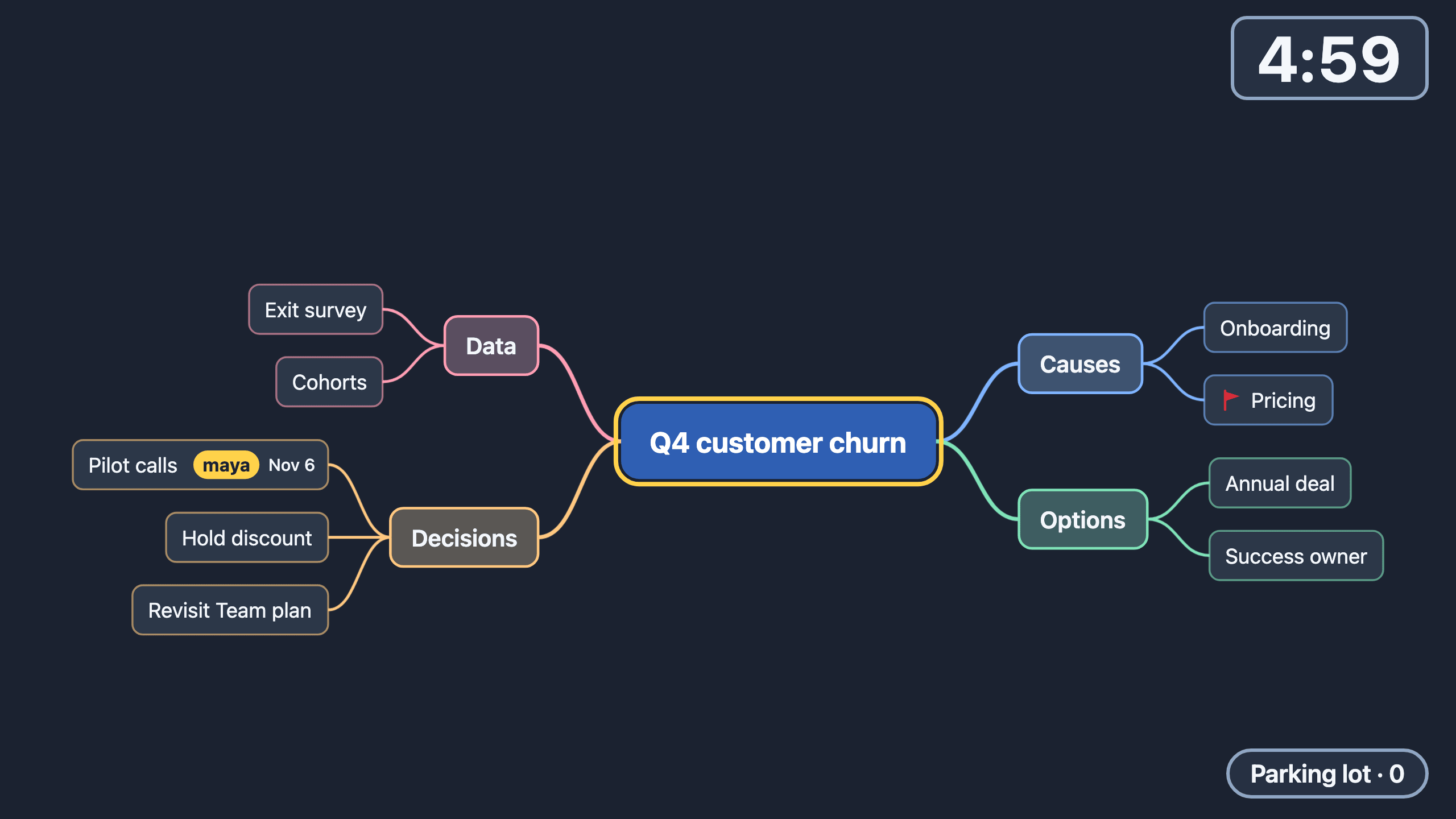
To present a mind map on Zoom or Teams, share the browser tab and press P in Enginely Stage, the mind map for meetings over Zoom. P opens a 1280 by 720 stage, F fills it with one branch and T starts a timer. Text never renders below 18 stage pixels.
How do I present a mind map on Zoom or Teams?
Share the browser window or tab, not your whole desktop, then press P. Stage is an ordinary web page and needs no plugin.
- Press P to enter presenter mode and P again to leave. Esc does not leave it.
- Move with the arrow keys. Press F to focus the selected branch and Esc to return to the whole map.
- Press T for a five-minute countdown at the top right. Press it again to add five minutes.
- Press L to send the selected node to the parking lot. Cmd/Ctrl K restores it.
- Press Cmd/Ctrl Shift C to copy a follow link for people who want the map on their phone (sharing a mind map live).
Why does a mind map look tiny on a shared screen?
A real map has dozens of nodes, and fitting them all on a 720p share makes the text unreadable. Stage uses a fixed 16:9 stage of 1280 by 720 stage units, letterboxed to your window, and sets two floors on text size.
- Whole map: text never renders below 18 stage pixels. If the map is too big, the camera stops zooming out, centers on your selection and hints F focuses a branch.
- Focused branch: text is at least 24 stage pixels, and everything else dims to 15 percent.
What is a run-sheet for a 30-minute discussion?
- 0 to 3 min: frame itType the question as the central topic. Press P, then T.
- 3 to 10 min: gatherEnter for siblings, Tab for children. Type what people say.
- 10 to 22 min: one branch at a timeSelect a branch, press F, then T. Park tangents with L.
- 22 to 27 min: decideEsc for the whole map. Type decisions as
Send the draft @sam ^fri. - 27 to 30 min: closeRead the action items aloud, then export to Markdown.
The timer, parking lot and owner tokens are covered in run a meeting with a parking lot, timer and action items.
Frequently asked questions
Does Stage integrate with Zoom or Teams?
No. It is a web page, so you share the browser window or tab the way you share any page, and presenter mode is sized for the share.
What if my map is too big to read on the share?
Select a branch and press F. The stage fills with that branch at 24 stage pixels or more, however large the whole map is.
Can I keep editing while presenting?
Yes. The editor stays live in presenter mode, so typing, Enter and Tab work as usual.
Do people on the call see the timer?
They see it on your shared screen. People using the follow link see the timer and parking lot on their own phones.